Installing SteamCMD
Server
For this to work, we will be using SteamCMD - here’s how to set it up. We will be using Ubuntu Server 26.04 for this portion of the guide. From your terminal, enter these commands - to install SteamCMD, the multiverse repository and x86 packages must be enabled.
Ubuntu
sudo add-apt-repository multiverse; sudo dpkg --add-architecture i386; sudo apt update
sudo apt install steamcmd
For other distributions, please refer to the instructions for your specific setup
Setup
You need a place to store the server - create a new directory, for example palworld
mkdir ~/palworld
Start installing the server from SteamCMD using this command:
/usr/games/steamcmd +force_install_dir ~/palworld +login anonymous +app_update 2394010 validate +quit
This will tell SteamCMD to start installing the Palworld server inside of ~/palworld.
If you get
ERROR! Failed to install app '2394010' (Missing configuration), you should try adding+@sSteamCmdForcePlatformType linuxto the command:
/usr/games/steamcmd +@sSteamCmdForcePlatformType linux +force_install_dir ~/palworld +login anonymous +app_update 380870 validate +quit
It should install inside of /home/<your user>/.local/share/Steam/steamapps/common/PalServer/. You should also have PalServer.sh
It is also reccommended that you create a startup script with your configuration - here’s ours
sudo nano start.sh
#!/bin/bash

cd "$(dirname "$0")" || exit

export LD_LIBRARY_PATH="$PWD/linux64:$LD_LIBRARY_PATH"

./PalServer.sh \
  -useperfthreads \
  -NoAsyncLoadingThread \
  -UseMultithreadForDS \
  -port=8211 \
  -publicip=69.9.181.16 \
  -publicport=30551 \
  -publiclobby \
  -ServerName="Palworld via playit.gg" \
  -ServerDescription="This server is tunneled via playit.gg" \
  -AdminPassword="a1b2c3d4"
Flags:
-port=8211- The local server port. This does not need changed.
-publicip=- The public facing IP address of your tunnel from playit.gg
-publicport=- The public facing port of your tunnel from playit.gg
-publiclobby- Makes the server joinable via the server list.
-players=- Sets the maximum number of players.
-ServerName="Name"- Defines the server name, must be a string.
-ServerDescription="Description"Defines the server description, must be a string.
-ServerPassword="Password"- Sets the server password, must be a string. For no password, don’t define this.
-AdminPassword="Password"- The admin password for the game’s console, must be a string.
Make the script executable by running chmod +x start.sh (we called ours start.sh). Now run this script by running ./start.sh.
Change this to match your specific configuration and save it inside of the PalServer folder. This will include changing -publicip and -publicport= to match your tunnel.
Your logs should look like this:
Setting breakpad minidump AppID = 1623730
Game version is v1.0.3.101283
Running Palworld dedicated server on :8211
[2026-08-1 00:00:30] [LOG] playit.gg 127.32.64.128 connected the server. (User id: steam_00000000000000000)

[2026-08-1 00:00:30] [LOG] playit.gg joined the server. (User id: steam_00000000000000000, Player id: 00000000000000000000000000000000)
Stop the server temporarily.
Creating the tunnel
- Type: Palworld
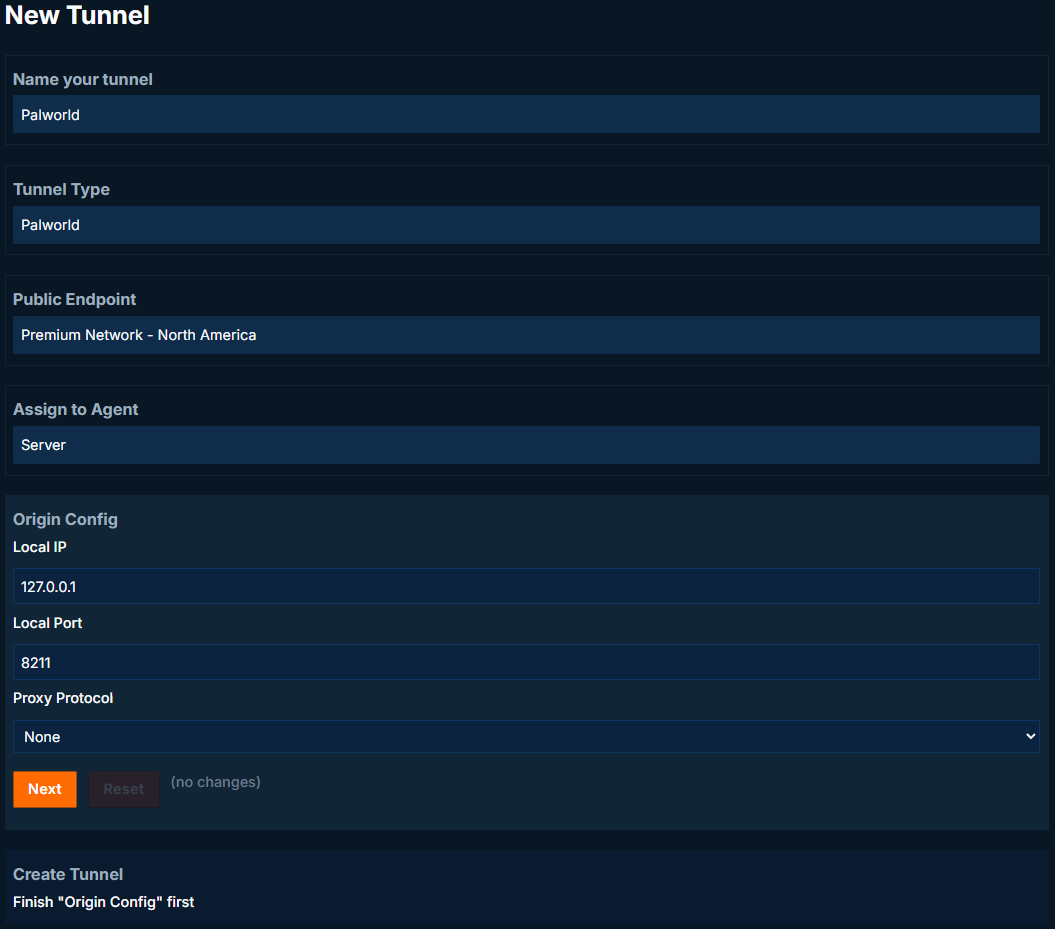
Leave Origin Configuration at the default values, and create the tunnel.
After tunnel creation, your tunnel address will be displayed at the top of the page.
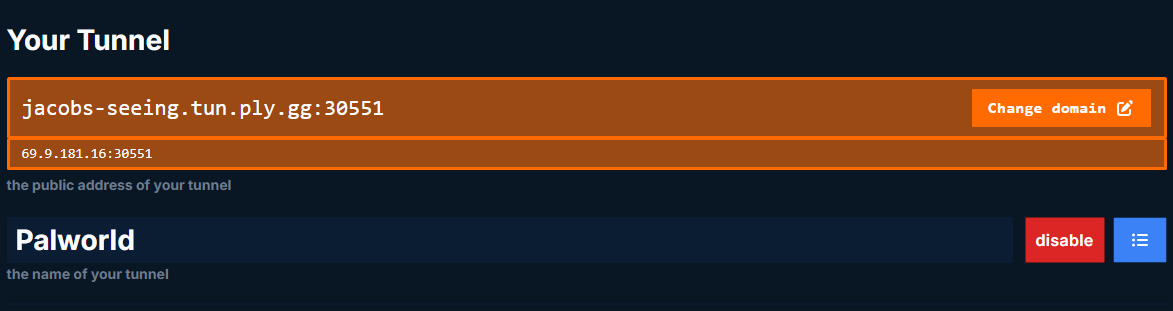
Now start the server by running ./start.sh. Users should now be able to connect via the playit tunnel.
Joining the server
There are two ways to join the server - direct connect or server list. If you did not launch the server with -publiclobby, then users need to join using the tunnel address. Since our server is a public lobby, we can see it in the server list, and join from it.